Hi Cloud Marathoner friends!
We have a new Cloud Lunch and Learn session dedicated to help you troubleshoot the Cloud platform issues with less hassle by understanding and using Azure Copilot insights.
what is azure copliot?
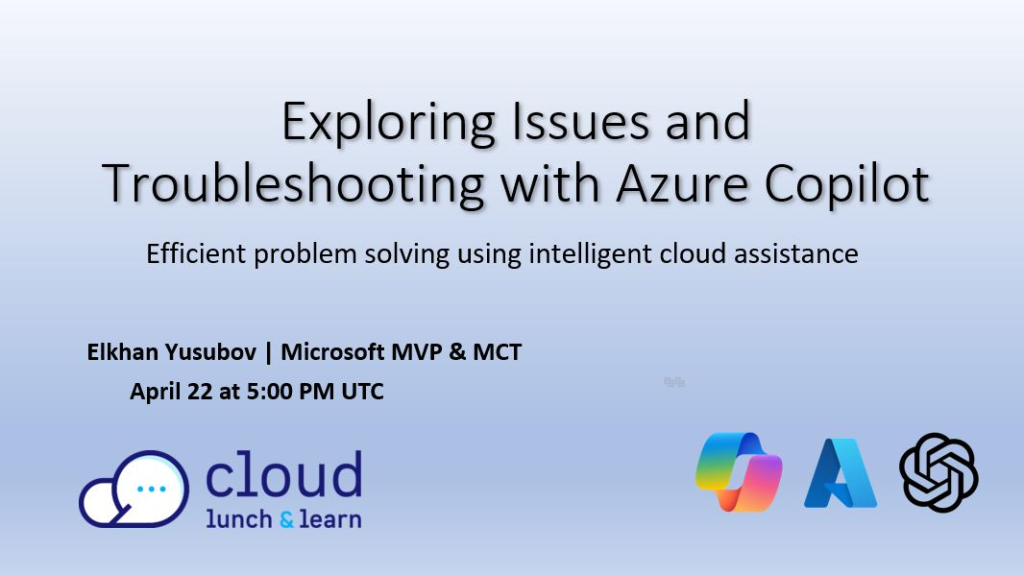
In short, Azure Copilot helps you to investigate and troubleshoot issues with AI-enhanced operations. In fact, you can ask Azure Copilot for help with designing, operating, optimizing, and troubleshooting your Azure apps and infrastructure. Azure Copilot is there to help you and orchestrate data across both the cloud and the edge services.
If you never used this AI assistant build into the Azure portal, then check it out here and get started > Azure Copilot Overview | Microsoft Learn
What is covered in this session?
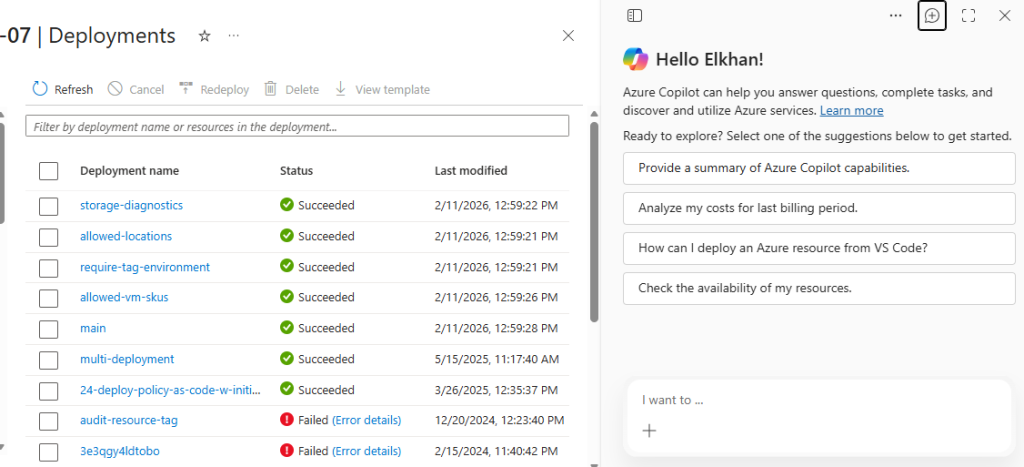
This session comes with a hands‑on session at Cloud Lunch and Learn, where we explore how #Azure Copilot can help you troubleshoot faster and with more confidence.
🔍 𝗪𝗵𝗮𝘁 𝘆𝗼𝘂’𝗹𝗹 𝗹𝗲𝗮𝗿𝗻:
✅ How Azure Copilot supports issue detection, analysis, and remediation
✅ How Copilot interprets logs, metrics, and alerts to surface real root causes
✅ Troubleshooting networking, identity, and deployment issues with live demos
✅ Using natural language prompts effectively (and safely)
✅ How to validate Copilot’s recommendations using Azure Monitor and diagnostics
✅ Why trust‑but‑verify is the most important troubleshooting mindset
💡 This session is all about pairing AI‑driven insights with proven Azure troubleshooting practices — so you can reduce Mean Time to Repair (MTTR) without losing control or confidence 😉
Manage access to Azure Copilot
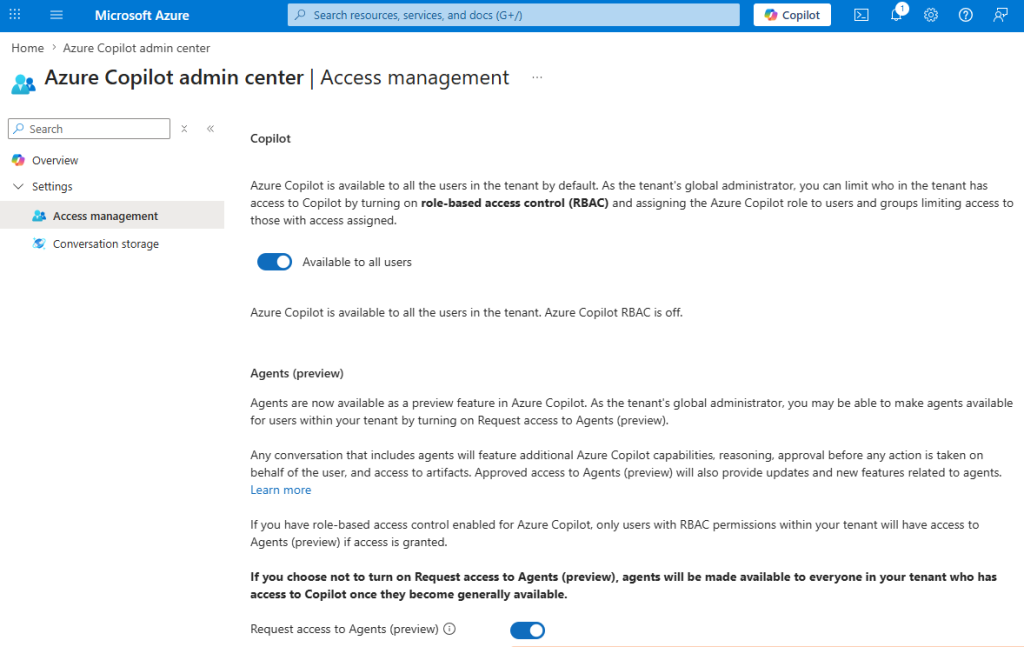
By default, Azure Copilot is available to everyone in the tenant. However, your tenant’s global administrator can limit who in the tenant has access to Copilot. This could be done by by turning on role-based access control (RBAC) and assigning the Azure Copilot role to users and groups limiting access to those with access assigned.
Demo #1 – enabling access
Description, steps and screenshots are coming soon
Demo #2 – IdentifyinG your active VMs
Description, steps and screenshots are coming soon
resources
| where type =~ 'Microsoft.Compute/virtualMachines'
| extend powerState = tostring(properties.extended.instanceView.powerState.code)
| where powerState == 'PowerState/running'
| project name, resourceGroup, location, powerState, subscriptionId
Demo #3 – Identifying failed sign-in and deployment logs
Description of prompt, tests and results
What are the last three deployment failures in my subscription?
Completed blog is coming soon … right after the demo session is published
